Video: Useful info about files.
Video: Useful info about editing.
Useful screenshots and step-by-step instructions for:
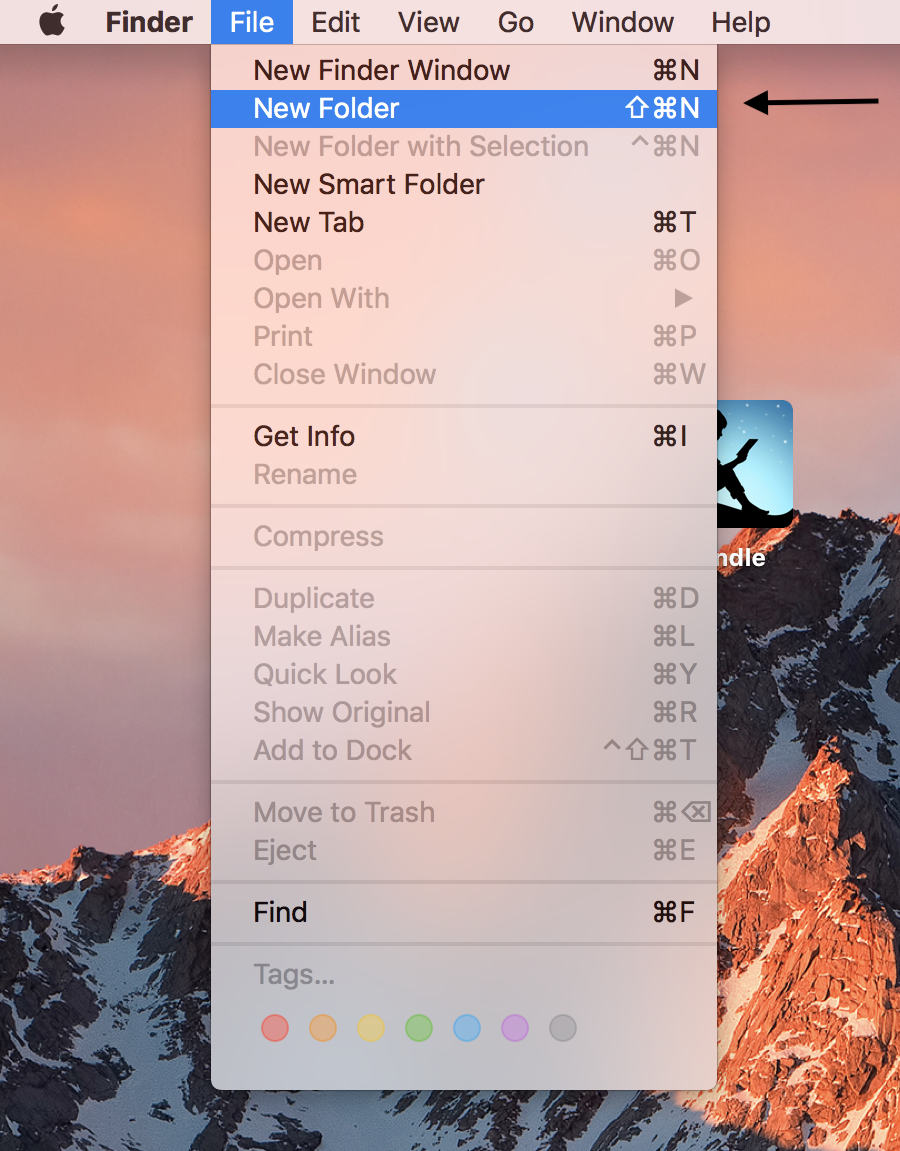
Mac Users: creating folders
- Step 1:
In the top right corner while on the Desktop you can click the File
option next to the work Finder. There you will see a New Folder
option that you can choose.
- Step 2: Here is the new folder on the Desktop
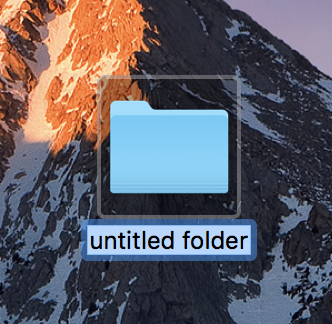
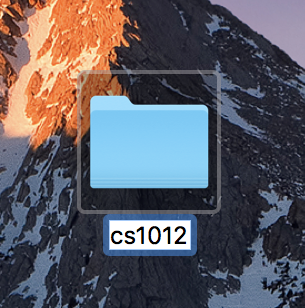
- Step 3: You can write over the highlighted text that is the name
of the folder and rename it whatever you want
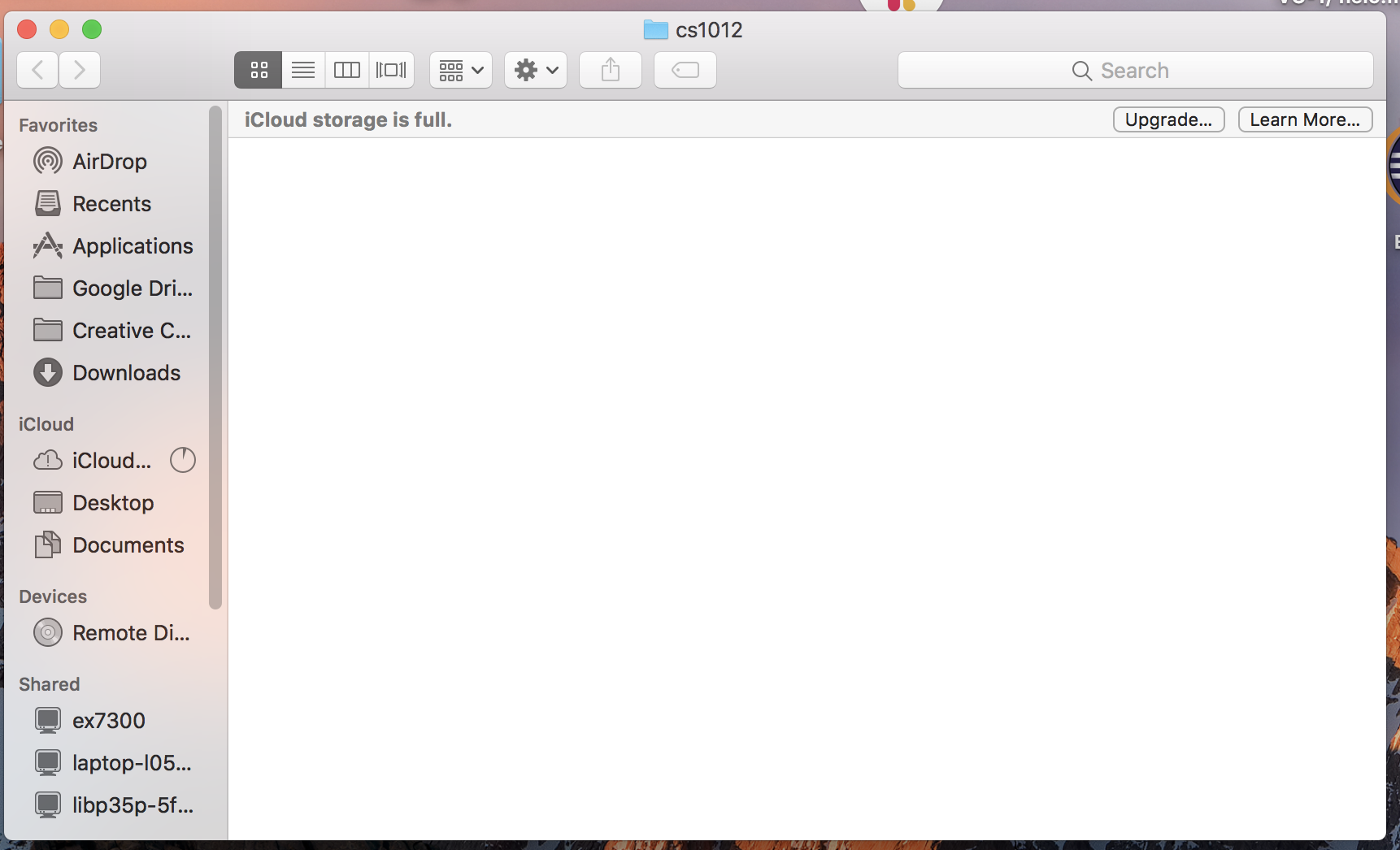
- Step 4: When you open the folder you will see it is empty
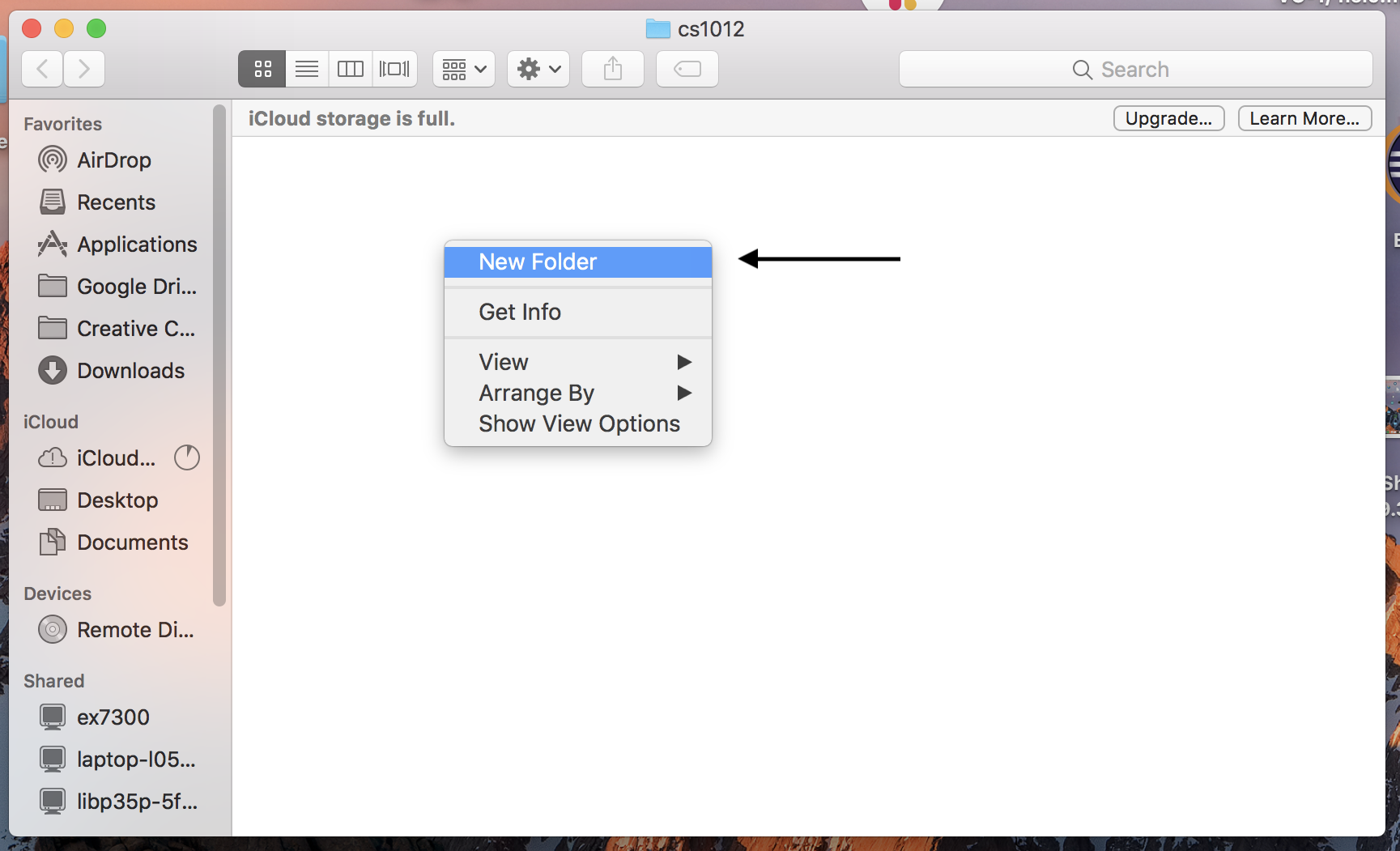
- Step 5: When you right click the space inside the folder you will see a New Folder option you can choose to make a new folder inside this one
- Step 6: Here is the new folder inside your old one
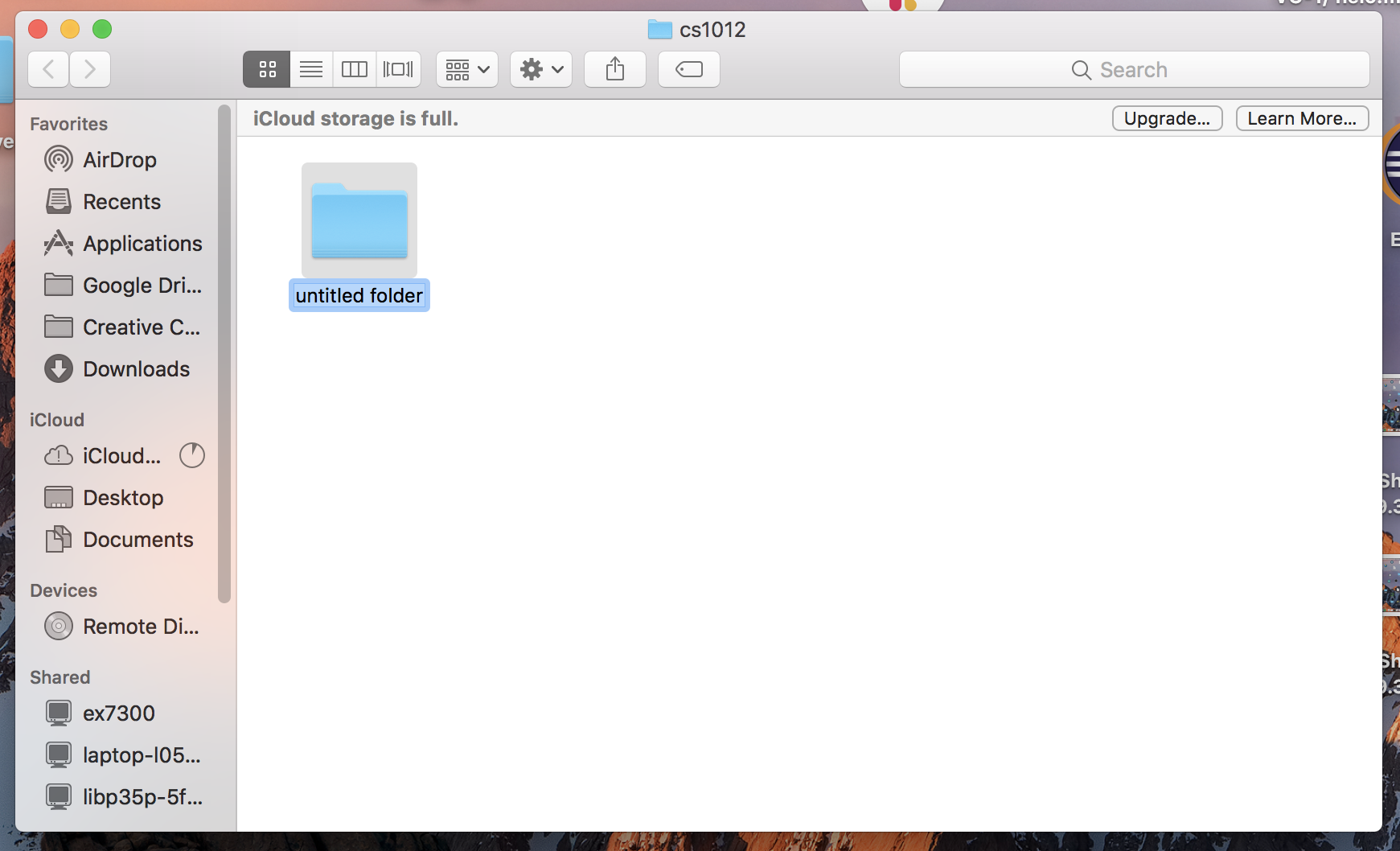
- Step 7: We are now in our newest empty folder and there is a setting option at the top of the folder window which has a New Folder option to make a new folder inside this one
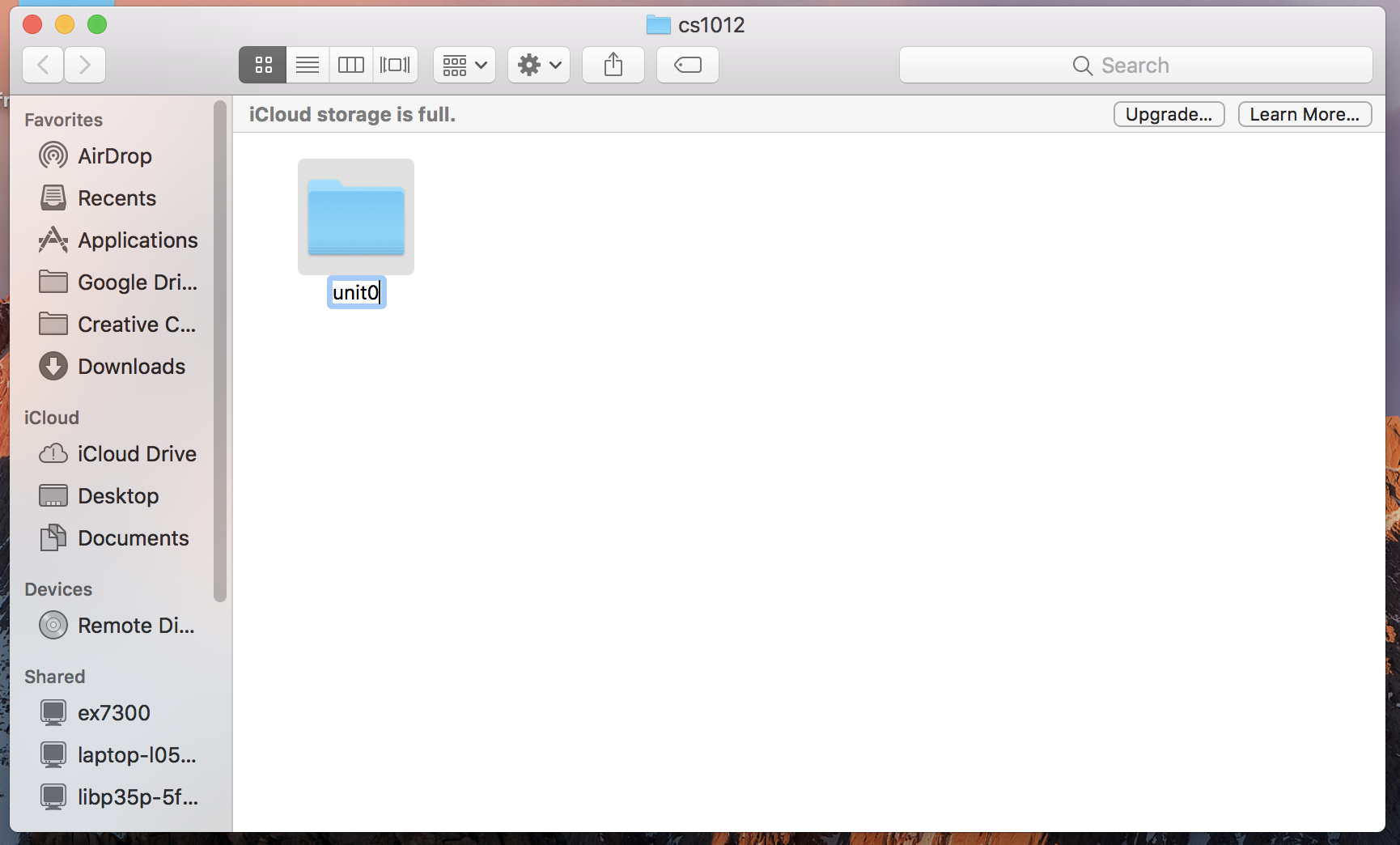
- Step 8: You can write over the highlighted text that is the name of the folder and rename it whatever you want
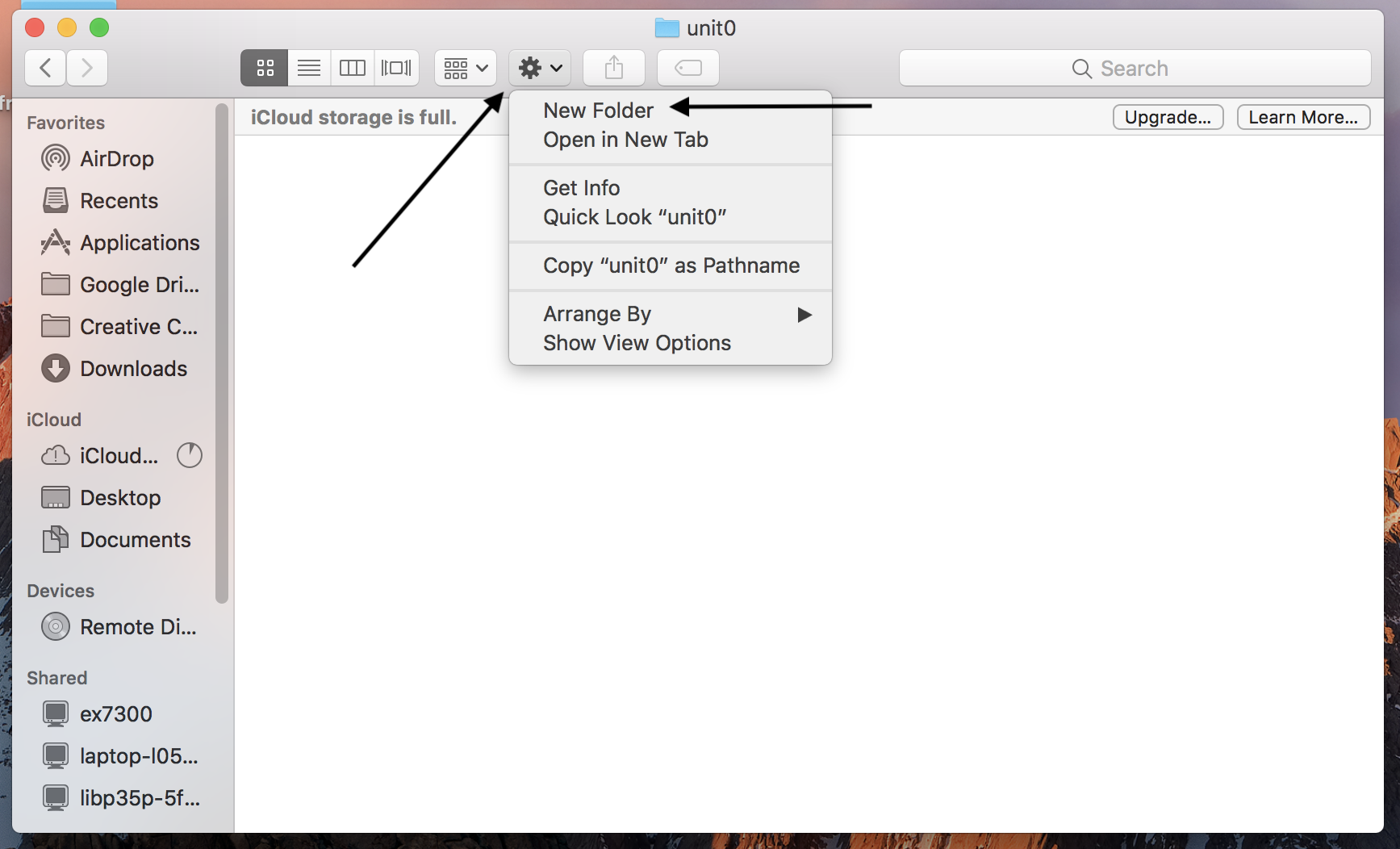
- Step 9: Here is the newest folder inside the unit0 folder
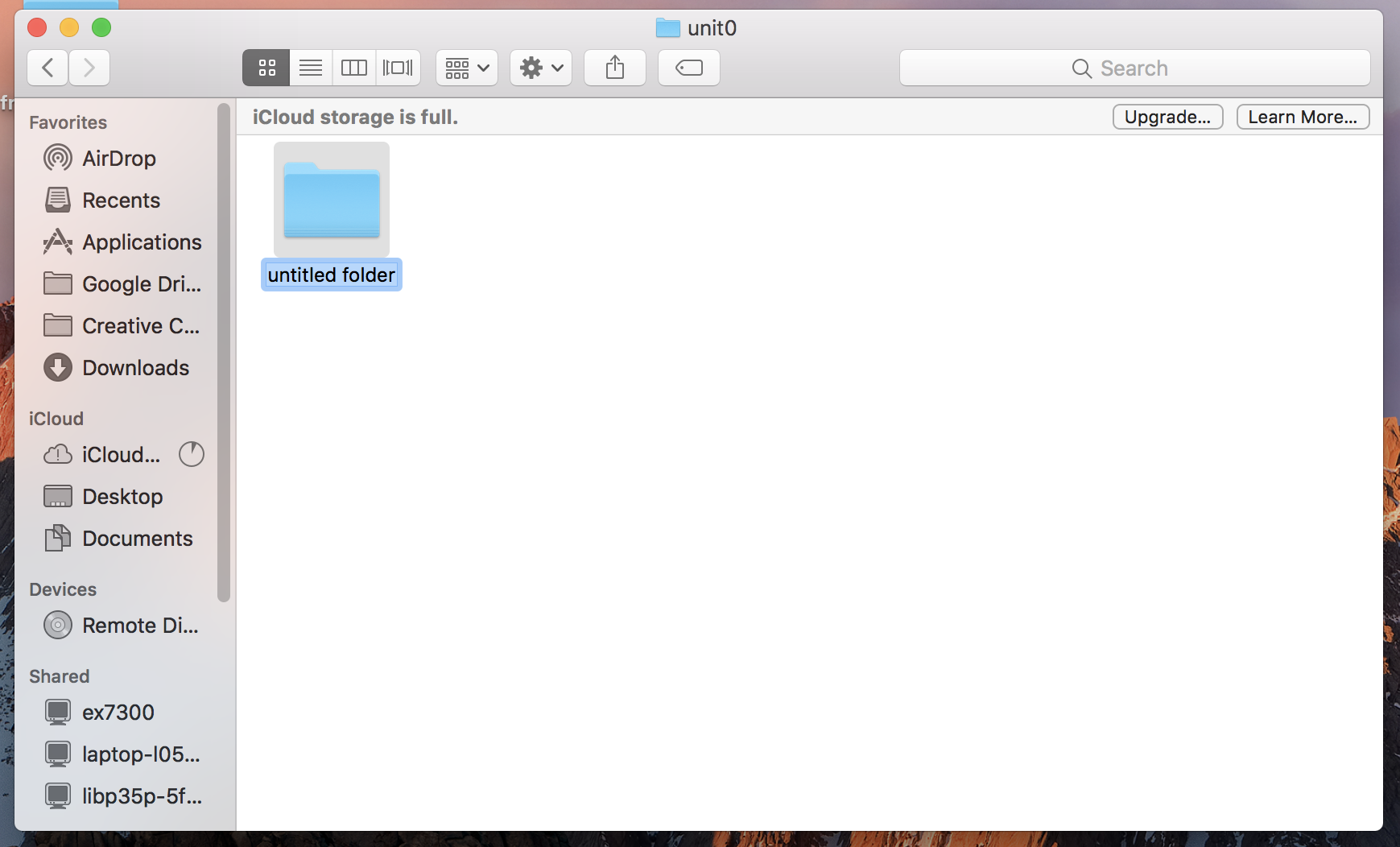
- Step 10: You can write over the highlighted text that is the name of the folder and rename it whatever you want
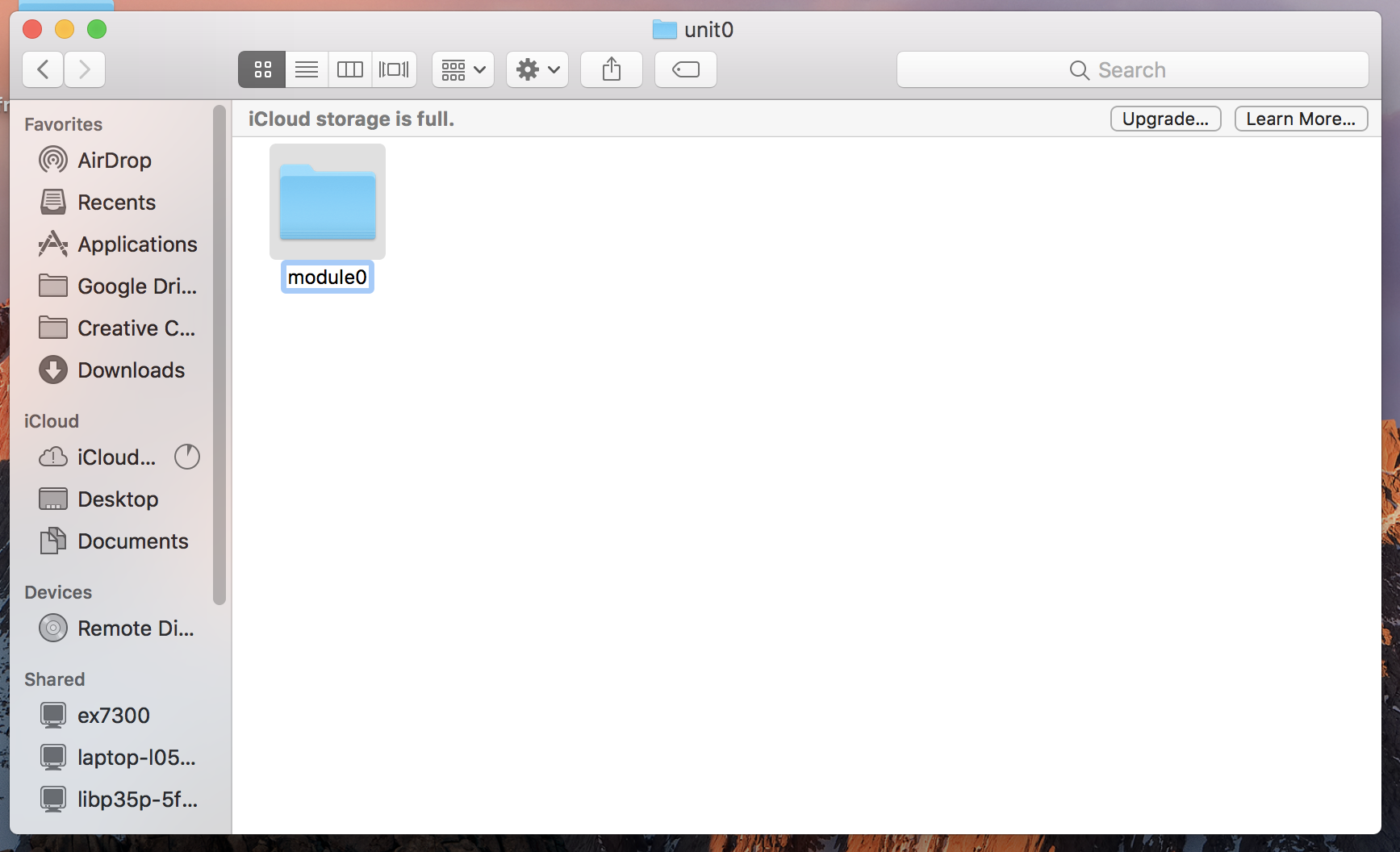
Now you have created three folders, on your Desktop and inside each other. All of these different ways to create folders and work easily. You can also click and drag folders to move them inside other folders if you need to.
Mac Users: file downloads
- Step 1: Here is a link to a file that needs to be downloaded to
the computer. (Note: this is an image we're showing, so don't
click. It is intended to show what it would look like on
your computer.)

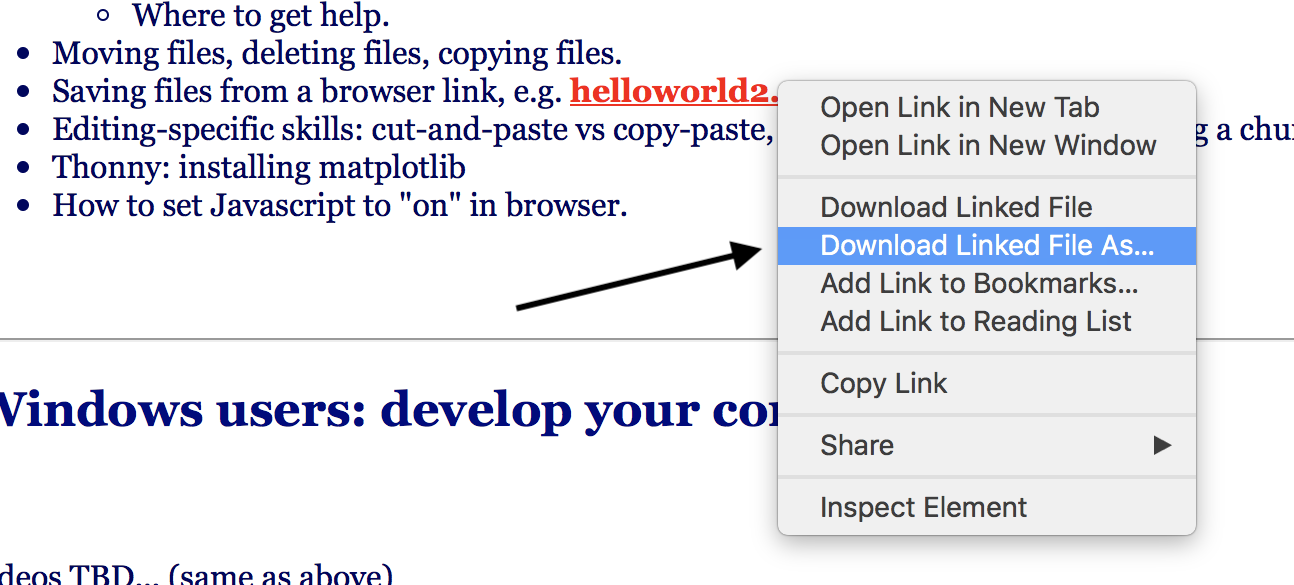
- Step 2: Right click on the link and choose Download Linked File As...
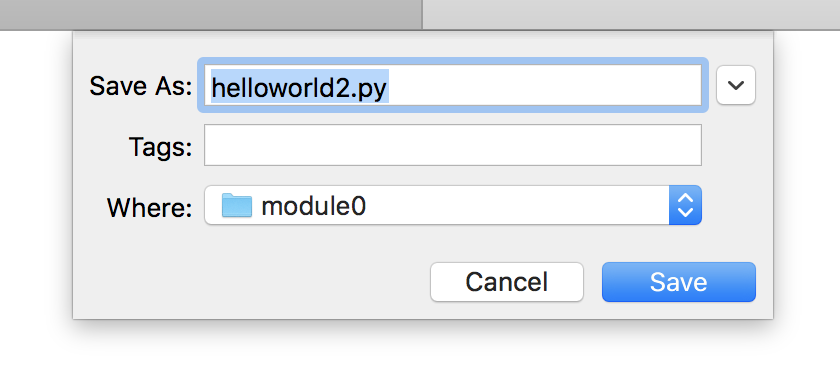
- Step 3: This will provide a box where you can name the file and
choose where you would like to save it.
-
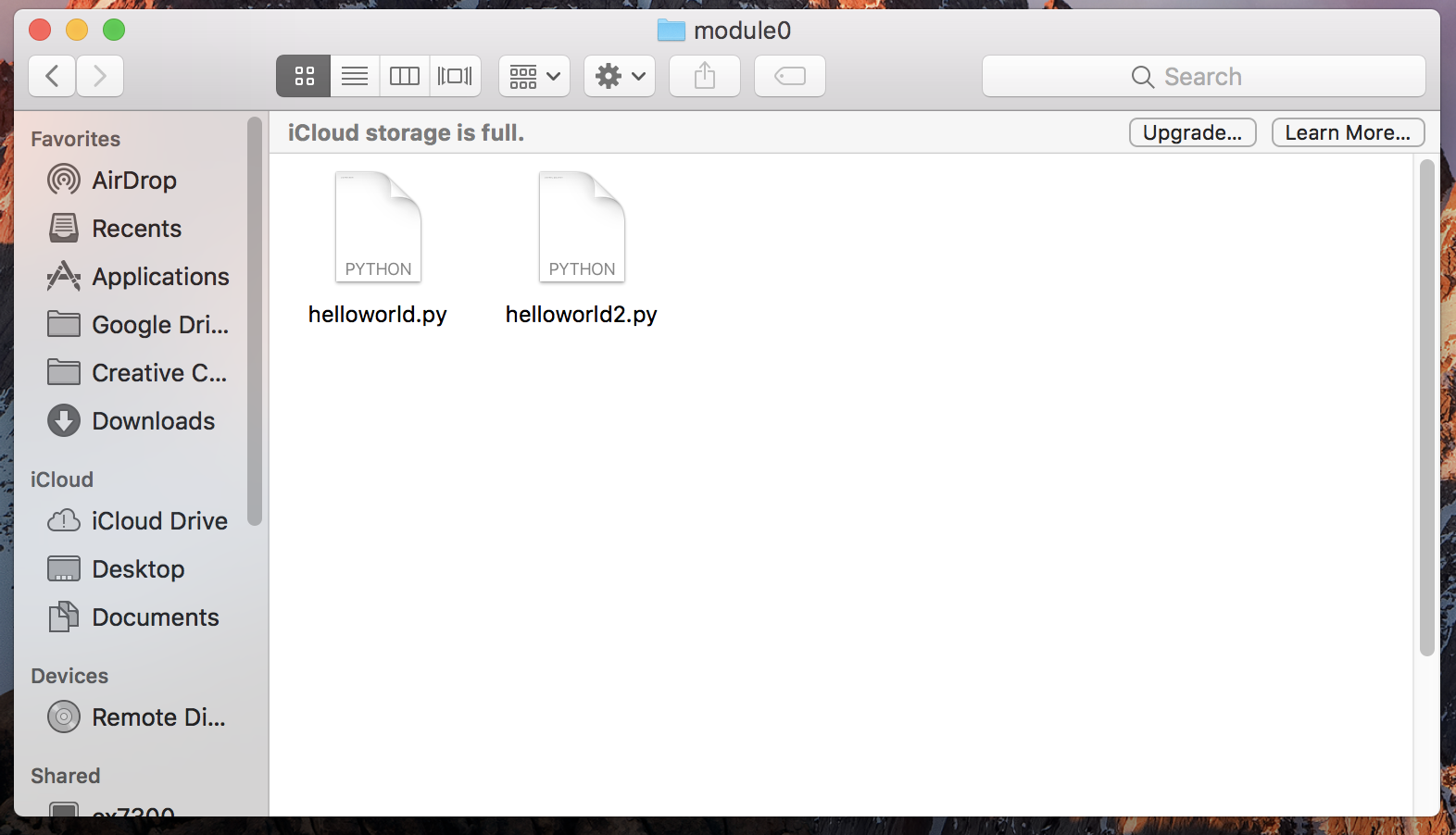
Step 4: Here you can see the file saved in the location we chose:
Mac Users: find a file
- Step 1:
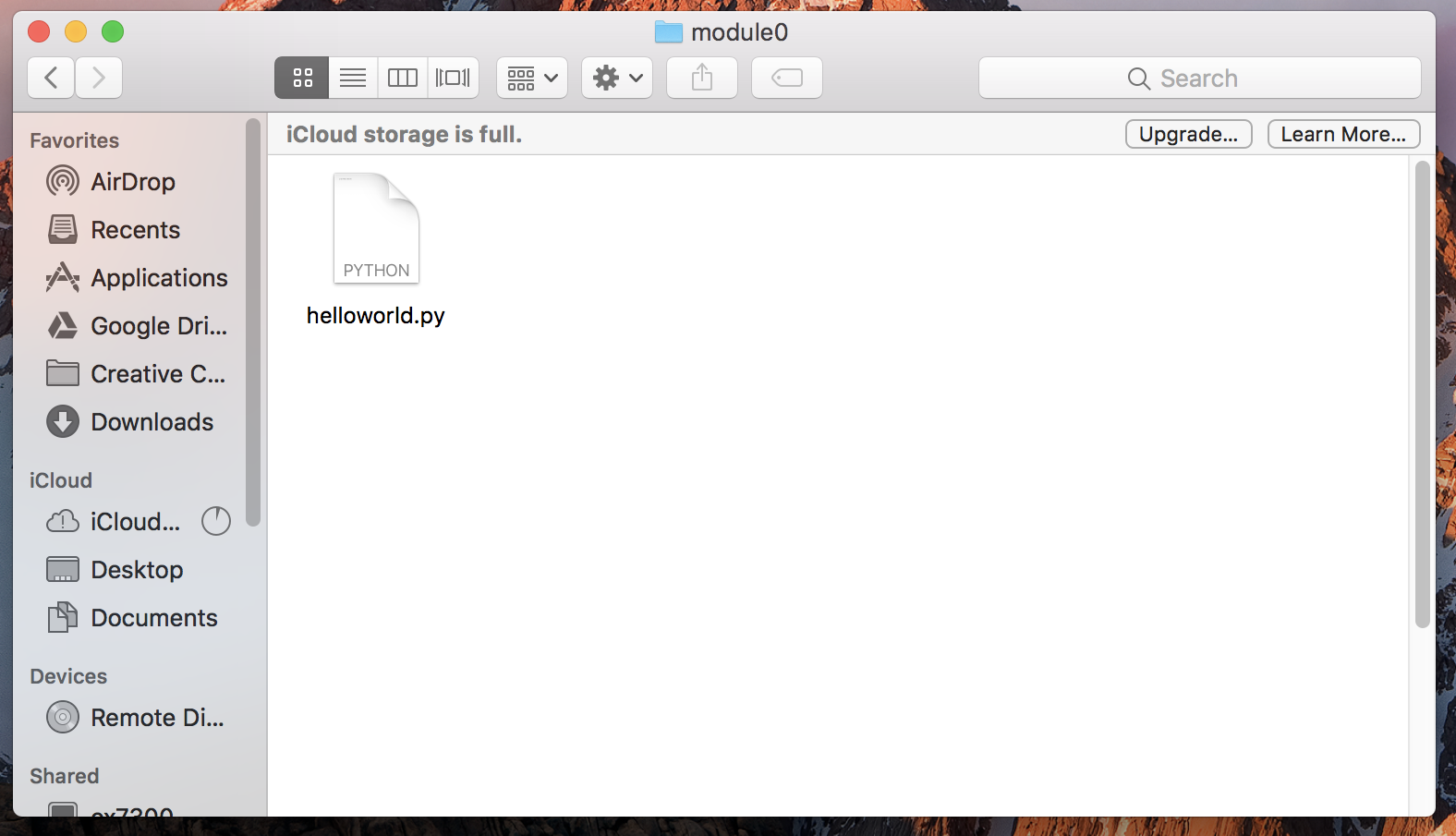
- Step 2:
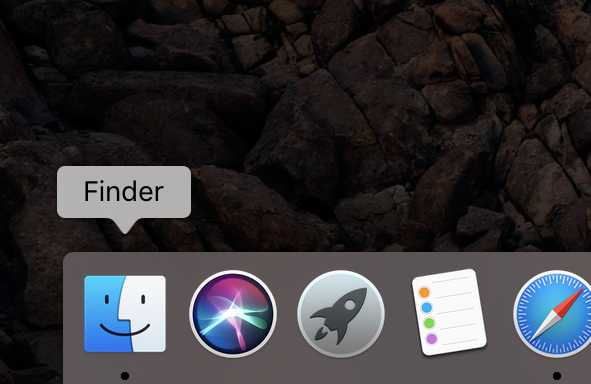
- Step 3:
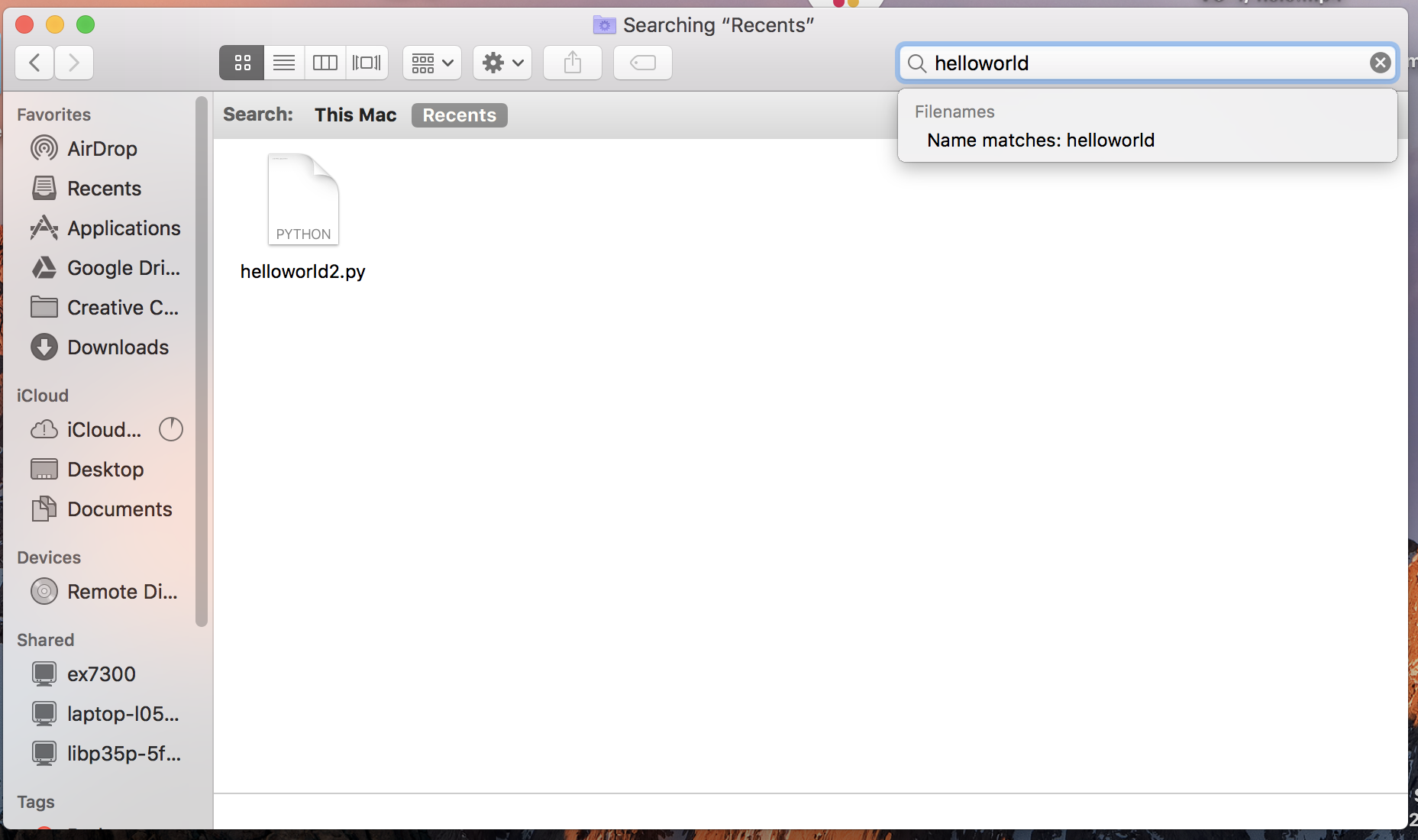
- Step 4:
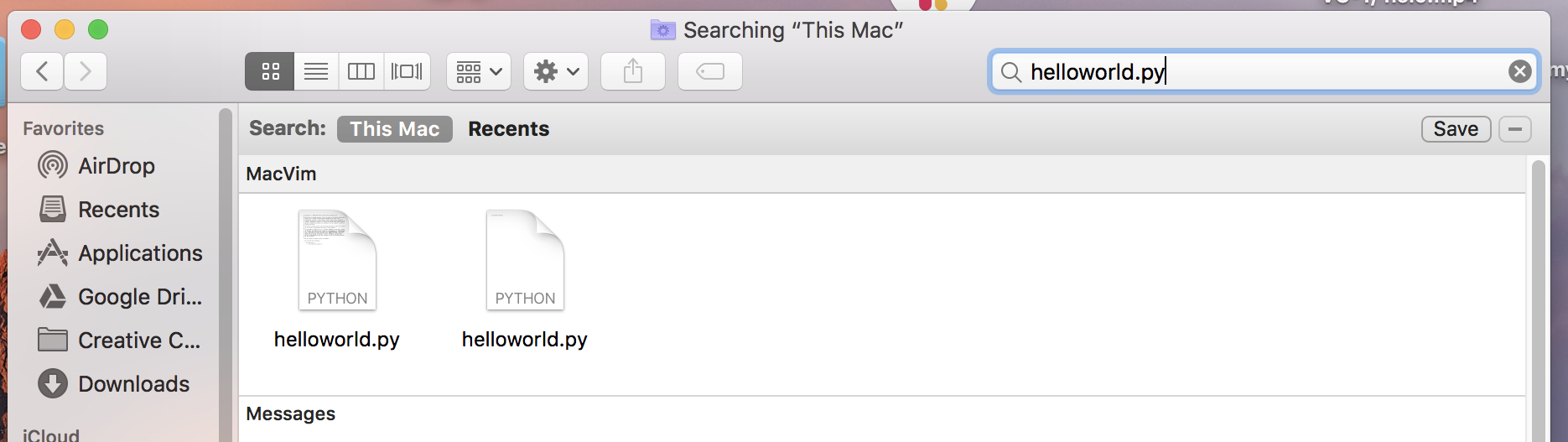
Mac Users: save a file
- Step 1: When you are ready to save a file you made for the first
time you can find a save option under the File option in the top
right.
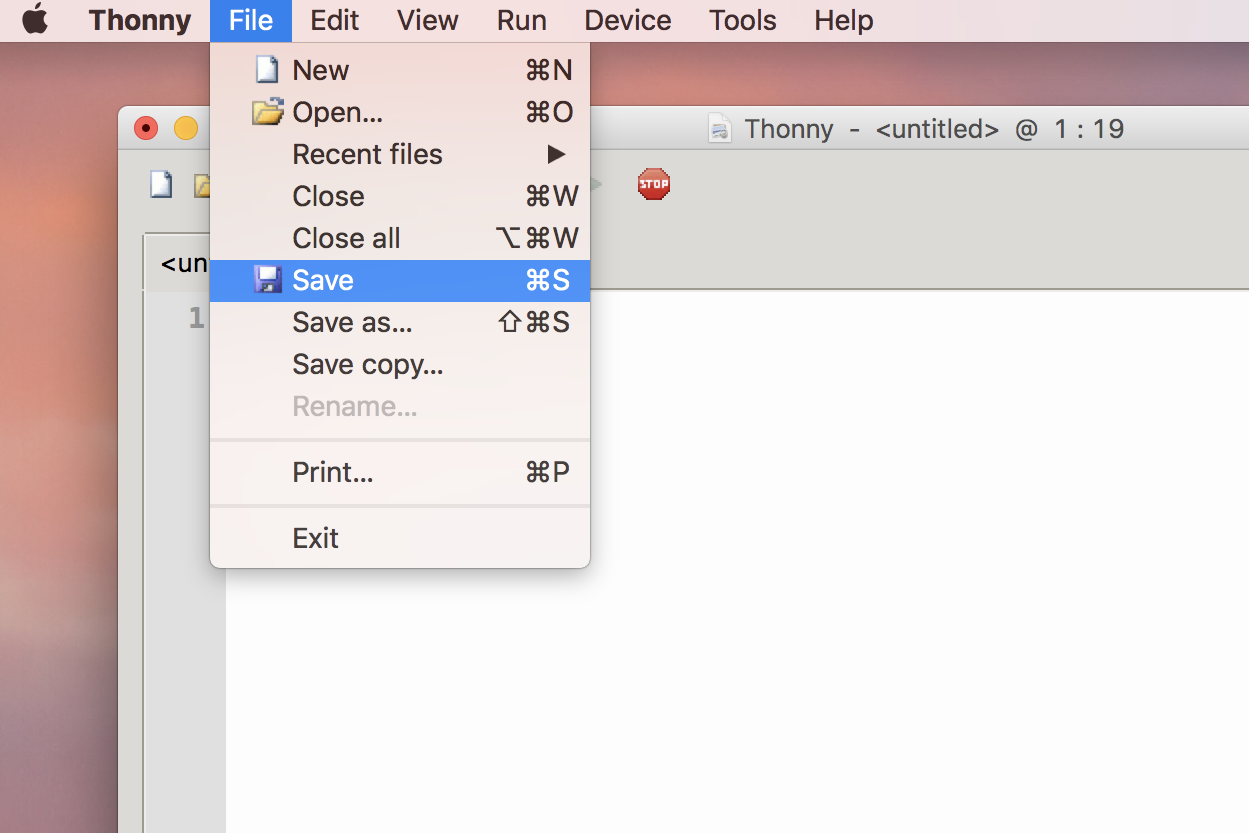
- Step 2: This will open up an option where you can choose the
location of your file as well as the name.
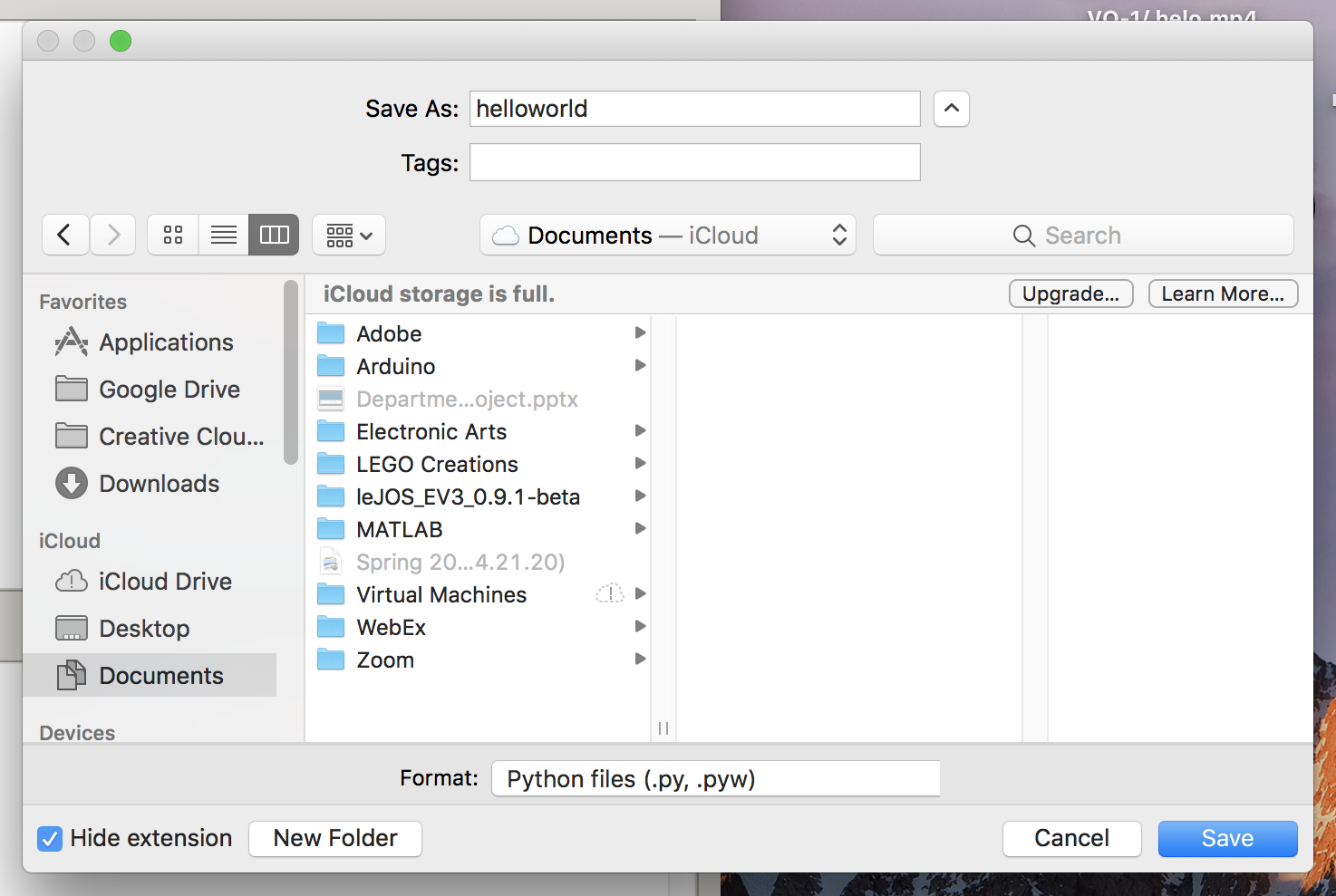
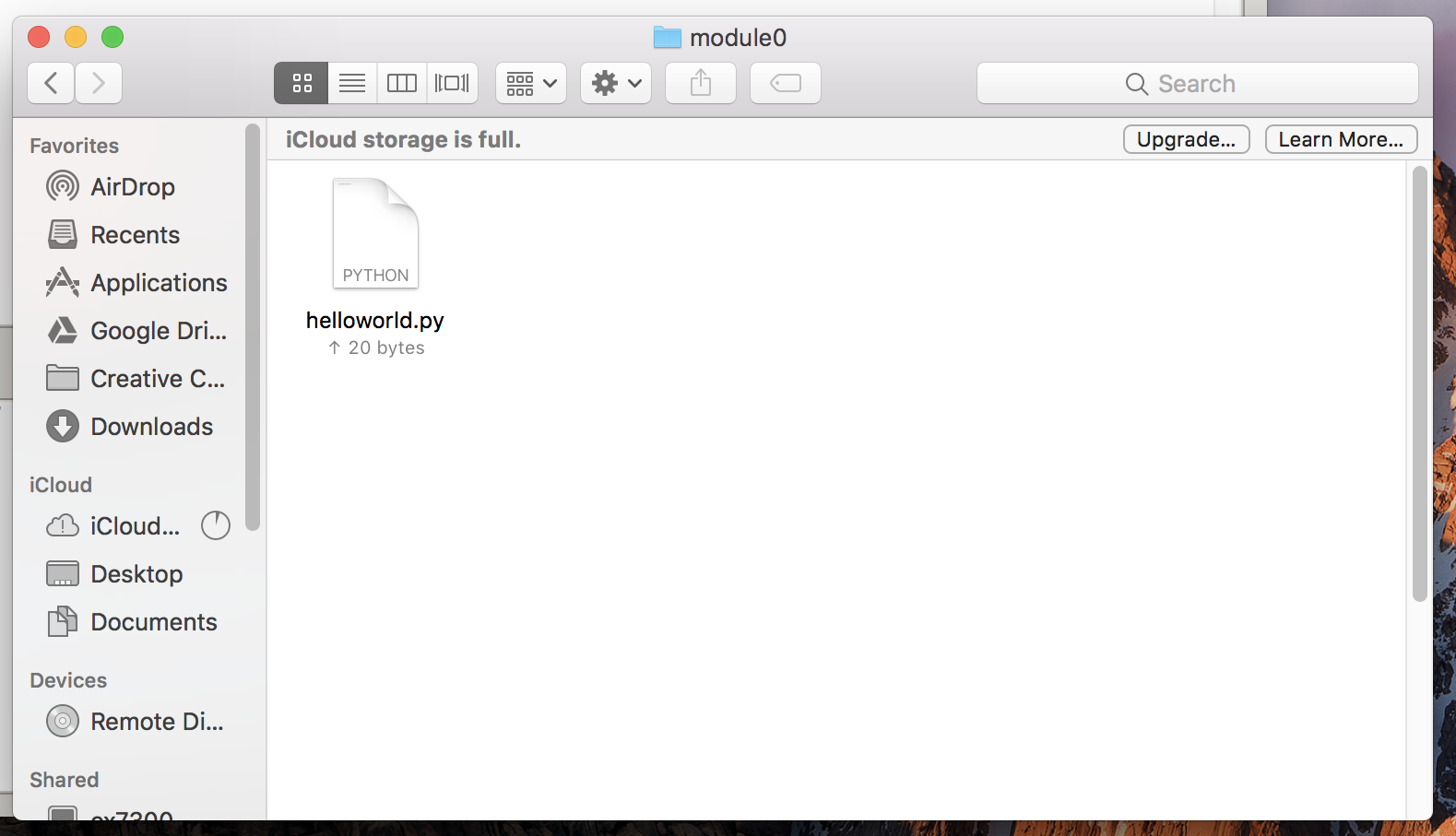
- Step 3: Now when we open the previously empty folder where I
saved this file you can see it there and you can open it and edit it
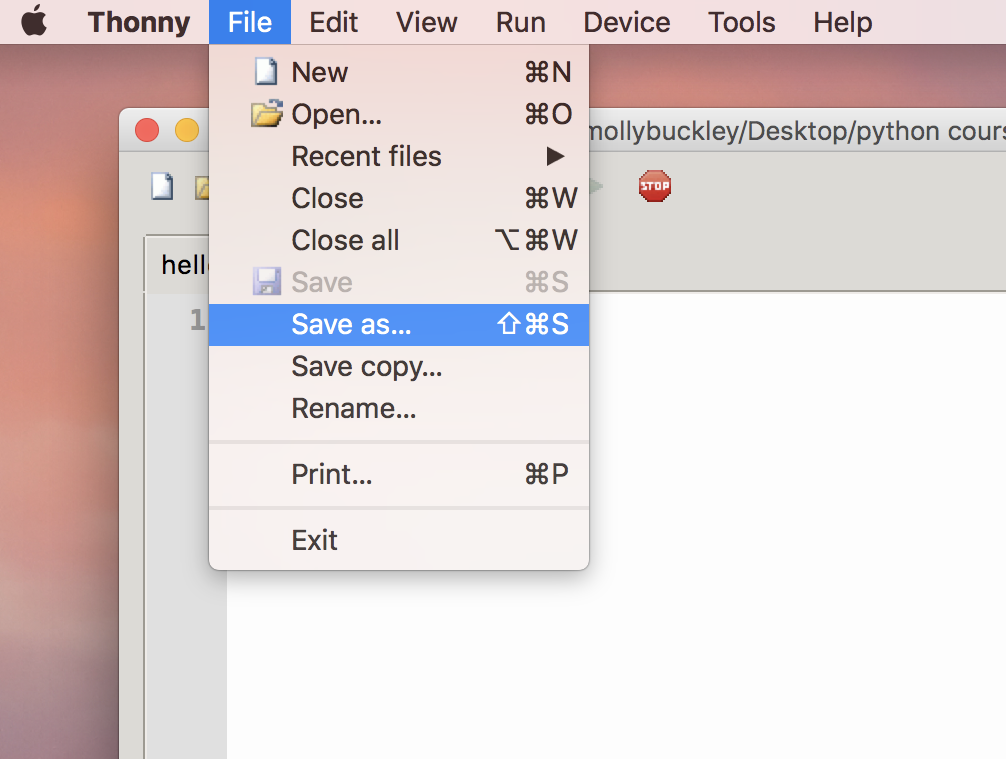
from this folder.
- Step 4: When you open that same file you will also see a Save As option, this lets you make a new version of the file and put it somewhere else and give it a new name, but when you edit this new file it will not edit the old one so if you want to move a file it's better to click and drag is somewhere new
Mac Users: Make a pdf
Mac Users: Make a zip
Back to Module 0